Introduction
Follow this guide to update the firmware on your P0003 Charger Control Board.
This procedure retains the existing settings, including calibration data, on the target board.
WARNING: this process is under development and has not been tested on all P0003 board variants. It should only be attempted at the direction of an M.Brodribb Engineer.
Step 1 - Install USB-Serial Driver (CP210X)
If you don’t have the serial driver installed on your PC, download and install the driver from here
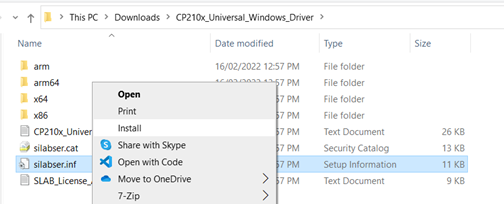
Extract the files, then right click the silabser.inf file and left click install. Note that this may require Administrative permissions on your PC
Step 2 - Connect to the P0003 board
Connect your PC to the USB-B port on charger via USB 2.0 A-B cable.
Step 3 - Download the firmware update package (zip file)
Step 4 - Extract the files
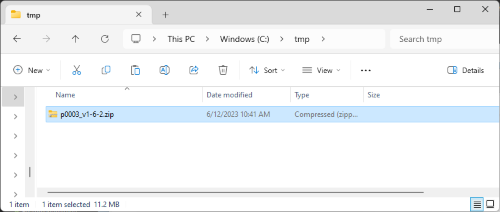
Extract the firmware zip file to a folder
Step 5 - Back up the configuration
Before updating, save a copy of the configuration stored on the board. If the update ever needs to be rolled back, the board's settings and calibration can be restored from this backup.
- If the web application is connected to the board, click
Disconnectin the application bar above. The backup tool needs the USB port to itself. - Open the extracted firmware folder.
- Double click, or Open, the
extract_config.exefile to run. A window opens for ~10 secs while the configuration is read from the board, then closes. - Open the new
extracted_configsfolder that has appeared in the firmware folder and confirm it contains two files:current_config_<controller id>_<date>_<time>.json- the settings currently in usefactory_config_<controller id>_<date>_<time>.json- the factory settings and calibration
- Copy both files somewhere safe, in a folder named with the charger serial number.
If the two files are not there, do not continue. Contact M.Brodribb before updating the firmware.
Step 6 - Run the update
- Open the extracted firmware folder.
- Double click, or Open, the
update_firmware.exefile to run
The folder also contains p0003-tool.exe, the graphical tool for flashing, filesystem access and config editing, alongside the upload_filesystem.exe and extract_config.exe command-line tools.
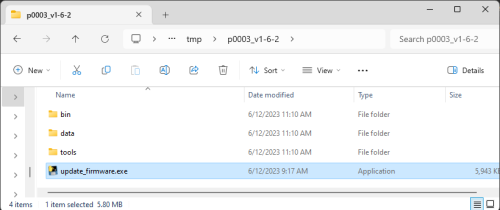
If there are no issues the firmware installation will take ~30 secs to complete
Step 7 - Confirm update complete using the web application
- Click
CONNECT VIA USBin the application bar above. - Wait 10 secs for the connection to be established
- Click on
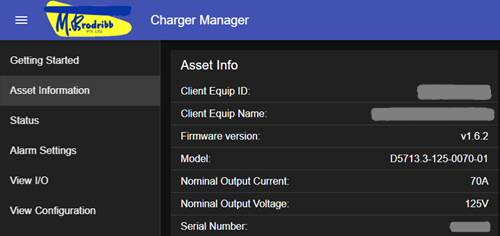
Asset Informationin the left menu - Confirm the firmware version and serial number are as expected.